Showing posts with label Cloud. Show all posts

Wednesday, October 29, 2014

Virtual Networks in Microsoft Azure (Part 1)

Introduction

In Part I of this article, you will learn how to create a new virtual network in Azure. You will also learn how to allow virtual machines and cloud services on different virtual networks to communicate across the Azure backbone by connecting Azure virtual networks to each other. Part II of this article will show you how to extend your on-premise network into the Microsoft Azure public cloud.
Advertisement

Microsoft Azure Virtual Network Overview

Just as you create virtual networks in Hyper-V to connect virtual machines (VM) to each other (private virtual network) or external networks (external virtual network), you can create virtual networks (VNet) in Microsoft Azure to connect VMs and services to each other (Cloud-Only VNet), and also connect an on-premise network to a Windows Azure virtual network (Cross-Premises VNet).
A Cloud-Only VNet is an isolated network that you create to connect virtual machines or cloud services to allow them to communicate across the Azure backbone. You must be proactive and plan out your VNet configuration before virtual machine and cloud service deployments because they acquire their network settings at deployment time. If you create a new VNet and want to connect existing VMs and cloud services to it, you will have to redeploy them to accomplish your objective.
A Cross-Premises VNet allows you to create a secure connection using a VPN device on your on-premises network to an Azure VNet Gateway. After the connection is established, resources connected to your on-premises network can communicate directly and securely with Azure resources connected to the Azure VNet. This is the type of configuration that you would implement if you were deploying a branch office with multiple devices that required access to resources deployed in Azure. It is also possible to setup point-to-site secure connections to an Azure VNet if you require the ability to configure connections from a limited number of on-premises devices. In this case, you configure a connection on each device using a VPN client. If you have on-premises infrastructure that requires fast speed, reliable, low latency, and higher security connections to Azure resources, you can use the Azure ExpressRoute service to build private connections that do not use the public Internet. With ExpressRoute, connections from on-premises networks are established at an ExpressRoute location, or from your wide area network (WAN) through a service provider.

Creating a Cloud-Only VNet

Creating a Cloud-Only VNet using the Azure Management Portal is a fairly easy process. After you create the VNet, you can deploy and connect virtual machines and cloud services that need to communicate with each other.
From your local system, log in to the Azure Management Portal, and follow this procedure to create a Cloud-Only VNet:
  1. Click New, found in the lower left-hand corner of the screen, as shown in Figure 1.
Image
Figure 1: Azure Management Portal Screen
  1. In the new pane, click Network Services, and then select Virtual Network, and then the Custom Createoption, as shown in Figure 2.
Image
Figure 2: Creating a VNet with Advanced Options
  1. On the Virtual Networks Details page, enter a virtual network name and select a location from the dropdown, as shown in Figure 3. The virtual network name can be anything you like, but you should develop and use a naming convention that identifies the purpose of the VNet. You should select the VNet location based on the region where you want to deploy your VMs and cloud services. Once selected, you cannot change the region associated with the VNet.
Image
Figure 3: Defining VNet Details
  1. On the DNS Servers and VPN Connectivity page, you do not need to make any changes. Azure will provide name resolution by default, as shown in Figure 4. Since you are creating a Cloud-Only VNet, you do not need to select the Site-to-Site or Point-to-Site Connectivity options.
Image
Figure 4: Defining DNS Server and VPN Connectivity
  1. On the Virtual Network Address Spaces page, you do not need to make any changes unless you require a specific subnet definition or internal IP address range, as shown in Figure 5. If you want to associate multiple subnets to the VNet, select the add subnet option. When you deploy new VMs to this VNet, Azure allocates IP addresses from the defined ranges to communicate within the VNet only.
Image
Figure 5: Defining VNet Address Spaces
  1. Once you click on the checkmark in the lower right-hand corner of the page, Azure creates the new VNet. The VNet then appears in the Management Portal, as shown in Figure 6.
Image
Figure 6: New VNet in Azure Management Portal
  1. When you create new VMs to deploy to the new VNet through the Azure Management Portal, you must select the From Gallery option to have the option to select the new VNet.

VNet to VNet Connection Background

If you deploy VMs and cloud services on different Azure VNets, and at a later time you require them to communicate with each other, you have to configure a VNet to VNet connection to create a communication path. A VNet to VNet connection requires the use of an Azure VPN gateway with dynamic routing. VNets can be connected using IPSEC tunnels, and a single VNet can connect to up to 10 VNet to VNet gateways. By default, a VNet only allows network traffic across a single VNet to VNet gateway connection. VNets can be in the same or different Azure subscriptions, and same or different Azure regions.
VNet to VNet connections can be configured either using a hub and spoke model or a daisy chain model, as shown in Figure 7 and 8, respectively.
Image
Figure 7: Hub and Spoke VNet Connection Model
In the hub and spoke model, a VM on VNet1 can communicate to VMs on VNet2, VNet3, VNet4, and VNet5. However, a VM on VNet2, VNet3, VNet4, or VNet5 can only communicate to a VM on VNet1 because of the default single hop isolation for a VNet to VNet connection.
Image
Figure 8: Daisy Chain VNet Connection Model
In a daisy chain model, a VM on VNet1 can communicate to VMs on VNet2, but not to VMs on VNet3, VNet4, and VNet5. However, a VM on VNet2 can communicate to a VM on VNet1 and VNet3, but not VNet4 or VNet5 because of the default single hop isolation.

Creating a VNet to VNet Connection

In order to create a VNet to VNet connection, you have to first ensure that the IP address ranges defined for each VNet do not overlap. For example, if you are connecting virtual networks named SouthCentralVNet1 and SouthCentralVNet2, then the address ranges should be unique as shown in Table 1.
Virtual   Network
Virtual   Network IP Address Definition
SouthCentralVNet1   (VNet1)
10.1.0.0/16
SouthCentralVNet2   (VNet2)
10.2.0.0/16
Table 1: Example VNet IP Address Ranges
Once the virtual networks are created, there are five more steps to perform before the VNet to VNet connection configuration is complete:
  • Configure each VNet to identify the other VNet as a local network site in Azure
  • Create dynamic routing gateways for each VNet
  • Configure each local network with the IP address of the local gateway
  • Configure a shared key for the VNet to VNet connection
  • Connect the VPN gateways
From your local system, log in to the Azure Management Portal, and follow this procedure to create a VNet to VNet connection for two existing Azure virtual networks with unique address ranges:
  1. On the Azure Management Portal, click New, then select Network Services, then Virtual Network, and then select the Add Local Network option, as shown in Figure 9.
Image
Figure 9: Add Local Network Option
  1. On the Specify your local network details page, enter the name of the first VNet that you want to connect, as shown in Figure 10. For the VPN Device IP Address, enter a placeholder address as you will come back and configure this parameter after Azure creates the gateway IP address a little later in the process.
Image
Figure 10: Configuring Local Network Details
  1. On the Specify the address space page, enter the actual IP address range that was created for VNet1, as shown in Figure 11.
Image
Figure 11: Configuring Local Network Address Space
  1. Repeat Steps 1 to 4 for VNet2 using the unique IP Address range defined for the virtual network in Azure.
  2. On the Networks page, click on VNet1 and then select the Configure page as shown in Figure 12.
Image
Figure 12: VNet1 Configure page
  1. In the site-to-site connectivity section, select Connect to the local network, and then select VNet2 as the local network, as shown in Figure 13.
Image
Figure 13: Selecting Site-to-Site Connectivity for VNet1
  1. In the virtual network address spaces section, click add gateway subnet,and then click the save icon, as shown in Figure 14.
Image
Figure 14: Adding a Gateway Subnet for VNet1
  1. Repeat Steps 5 to 7 for VNet2 and specify VNet1 as a local network.
  2. On the Dashboard page for VNet1, select Create Gateway as shown in Figure 15.
Image
Figure 15: Creating a Gateway for VNet1
  1. Make sure to select Dynamic Routing, as shown in Figure 16.
Image
Figure 16: Selecting Dynamic Routing for the VNet Gateway
  1. While Azure creates the gateway, which takes about 15 minutes, you will see the status shown in Figure 17.
Image
Figure 17: VNet1 Dashboard Status during Gateway Creation
  1. Repeat Steps 9 and 10 to create the gateway for VNet2. You do not need to wait for the first gateway to be created as Azure can create both gateways concurrently.
  2. When the gateway status changes to Connecting, retrieve the IP address for each Gateway from the Dashboard, as shown in Figure 18.
Image
Figure 18: Gateway IP address after Gateway Creation
  1. On the Add a Local Networks page, click on VNet1, and then click Edit at the bottom of the page. For the VPN Device IP Address, enter the IP address of the gateway that you recorded for VNet1, as shown in Figure 19.
Image
Figure 19: Local Network Gateway IP Address Configuration
  1. Repeat Step 14 for VNet2.
  2. The final step to set up the VPN gateway connection is to configure the pre-shared IPSEC key to the same value. You can accomplish this by using the following cmdlets in a Windows Azure PowerShell:
    Set-AzureVnetGatewayKey –VNetName SouthCentralVNet1 – LocalNetworkSiteName VNet2 – SharedKeyAB12cd34Set-AzureVnetGatewayKey –VNetName SouthCentralVNet2 – LocalNetworkSiteName VNet1 – SharedKeyAB12cd34
  3. After these cmdlets complete successfully, you can select the Connect option on the VNet Dashboard page, and the connection will initialize. Once the connection is initialized, the Dashboard will display the VNet to VNet connection, as shown in Figure 20.
Image
Figure 20: Successful VNet to VNet Connection

Conclusion

A Microsoft Azure Cloud-Only VNet default configuration restricts communications between resources deployed on that VNet. A VNet to VNet connection allows you to provide a communication path between resources deployed on two different VNets across the Azure backbone. The configuration of a VNet to VNet connection is very similar to the configuration of an on-premises network to an Azure VNet, which you will learn in Part II of this article.
If you would like to be notified when Janique Carbone releases the next part in this article series please sign up to our VirtualizationAdmin.com Real-Time Article Update newsletter.

Tuesday, October 14, 2014

Dropbox Denies It Was Hacked, Says Leaked Usernames And Passwords Are Bogus

You may have read in the news that hackers infiltrated Dropbox, stole seven million usernames and passwords, and then posted a portion of those login credentials online. Those reports stem from an anonymous post on Pastebin.com containing what the author claims is a data dump of 400 Dropbox accounts, calling it the "first teaser" of 6,937,081 hacked accounts. However, Dropbox says the leaked info is from other services.

"Recent news articles claiming that Dropbox was hacked aren’t true. Your stuff is safe. The usernames and passwords referenced in these articles were stolen from unrelated services, not Dropbox. Attackers then used these stolen credentials to try to log in to sites across the internet, including Dropbox. We have measures in place to detect suspicious login activity and we automatically reset passwords when it happens," Dropbox said.

Dropbox
Image Source: Flickr (Ian Lamont)

The anonymous poster went on to dump even more username and password combinations, though in an update to Dropbox's original blog post, the cloud storage provide said today that it checked into the new data and confirmed that they're "not associated with Dropbox accounts."

Nevertheless, just because your Dropbox credentials are safe this time around, that doesn't mean they always will be. Data breaches have become an all-too-common occurrence lately. Dropbox used the opportunity to remind users that they shouldn't reuse passwords across multiple services. The cloud storage provider also recommends enabling 2-step verification on your Dropbox account.

Tuesday, September 9, 2014

Hackers launch Apple ID phishing campaign playing on iCloud security worries


Phishing emails masquerade as security alerts from Apple about rogue iTunes purchases, researchers from Symantec said

By Lucian Constantin, IDG News Service |  Security
Add a comment
The hackers behind the Kelihos botnet are trying to capitalize on users' increased awareness about the security of Apple online accounts through a new phishing campaign.
According to security researchers from Symantec, the Kelihos botnet has started sending spam emails that purport to be security alerts from Apple informing recipients that a purchase was made using their Apple ID from the iTunes Store. Apple IDs are the accounts that customers use to access Apple's online services.
The rogue emails bear the subject "Pending Authorisation Notification" and claim that the purchase was made from a computer or a device not previously linked to the user's Apple ID, the Symantec researchers said Friday in a blog post. The emails list an IP (Internet Protocol) address from where the purchase was allegedly initiated and a corresponding physical location of Volgograd, Russia, they said.
The fake messages instruct users to click on a link if they didn't initiate the purchase. The link leads to a phishing site that masquerades as the Apple ID log-in page and harvests credentials inputted by users for later misuse.
The use of fake security alerts as phishing bait is not a new technique. However, because this particular attack comes shortly after a widely publicized event where a number of celebrities had their iCloud accounts broken into, it might trick a larger number of users than a typical phishing campaign.
One week ago news broke out that hackers stole nude photographs from the iCloud accounts of a number of female actresses and models and leaked some of them on public websites.
There was initial speculation that the leaks might have been the result of a brute-force password guessing attack via the "Find My Phone" feature, but Apple later said that the leaks were the result of a "a very targeted attack on user names, passwords and security questions" and not that of a breach of the company's cloud-based systems.
The incident received so much attention online and in the media that it even prompted a response from Apple CEO Tim Cook, who told the Wall Street Journal that the company will start sending security notifications to users via email and push messages when iCloud account changes occur.
It is possible that the timing of the [phishing] campaign is not a coincidence and the controllers of the botnet are attempting to exploit public fears about the security of Apple IDs to lure people into surrendering their credentials," the Symantec researchers said.
The Kelihos botnet authors are adept at exploiting current events. In August they launched a spam campaign that encouraged Russian-speaking users to install a program on their computers so they can be used in distributed denial-of-service (DDoS) attacks against Western government websites in response to the recent international sanctions against Russia. The emails actually linked to a variant of the Kelihos malware, not a DDoS program.
To prevent unauthorized access to their accounts even when their user names and passwords are compromised, users are advised to turn on two-step authentication for their Apple ID accounts.

Tuesday, September 2, 2014

Microsoft Lifts 2GB Limit, Adds Ability To Search For ‘Sensitive Data’ On OneDrive

Microsoft Lifts 2GB Limit, Adds Ability To Search For ‘Sensitive Data’ On OneDrive

 rated by 0 users
This post has 0 Replies | 0 Followers


Top 10 Contributor
Posts 26,212
Points 1,187,150
Joined: Sep 2007
ForumsAdministrator
News Posted: Tue, Sep 2 2014 11:13 AM
There's a bit of an arms race going on in the cloud, with services like OneDrive, Google Drive, and Dropbox continually adding new features and options. Last week it was Dropbox that made a major move by consolidating its three paid subscription option into asingle plan with more storage, and this week it's Microsoft that's bring about changes to its OneDrive service.

One of those changes is happening on the down-low. You may have noticed that you can now upload files larger than 2GB to your OneDrive account. That's because Microsoft has started dropping file size limits this weekend as it looks to do away with an old restriction that really isn't necessary in today's landscape.

While there was no official announcement of the change, Omar Shahine, a Group Program Manager for Microsoft, addressed the issue in a forum post a couple of weeks ago when a OneDrive user asked about the file size limit. He said, "It's not arbitrary. It's simply an old limit that we've been working on removing for far too long now. The good news is that we are actively working on this."

OneDrive

Microsoft also added the ability to search for sensitive content in both SharePoint and OneDrive documents. Sensitive data can include things like credit card numbers, Social Security numbers, customer information, patents, confidential documents, and more. The Redmond outfit is being a bit more vocal about this change.

"Searching for sensitive content in SharePoint and OneDrive is now available worldwide for your use in yourOffice 365 environment. With this new capability, you can be better informed about what and where sensitive documents exist in SharePoint Online and OneDrive for Business. And having this information will help you work better with content owners to ensure protection of sensitive data," Microsoft stated in a blog post.

Microsoft says it plans to add additional capabilities later this year, including the ability to create policies that automatically detect sensitive content and apply protection.

Monday, September 1, 2014

OnLive Brings Flash, Office, Speedy Connection to iPad for $5 a Month

OnLive Brings Flash, Office, Speedy Connection to iPad for $5 a Month


OnLive Brings Flash, Office, Speedy Connection to iPad for $5 a Month
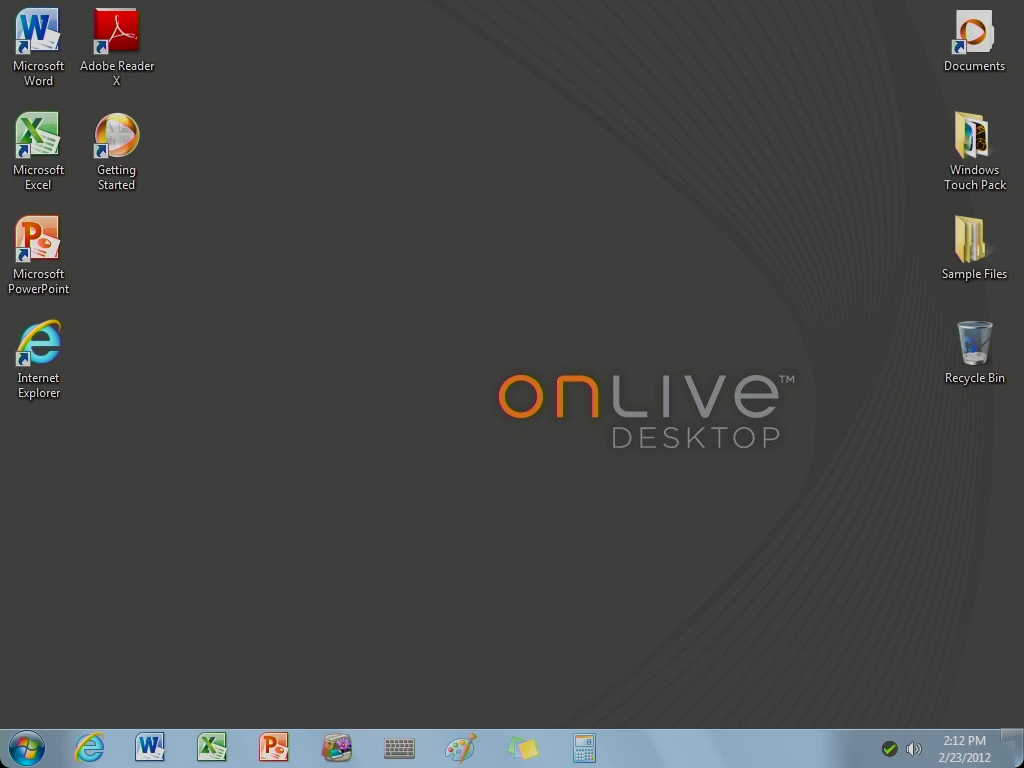
OnLive, the cloud gaming service, is making it easier to leave your laptop at home, but still bring along a Windows 7 desktop with you, on your iPad. The company has announced a new $5 per month plan called OnLive Desktop Plus that lets you access a virtual Windows 7 desktop on your iPad with Microsoft Excel, PowerPoint, and Word, Adobe Reader, and Internet Explorer (including Adobe Flash support). OnLive released a free version of its Windows 7 desktop for iPad in January, but without a Web browser.
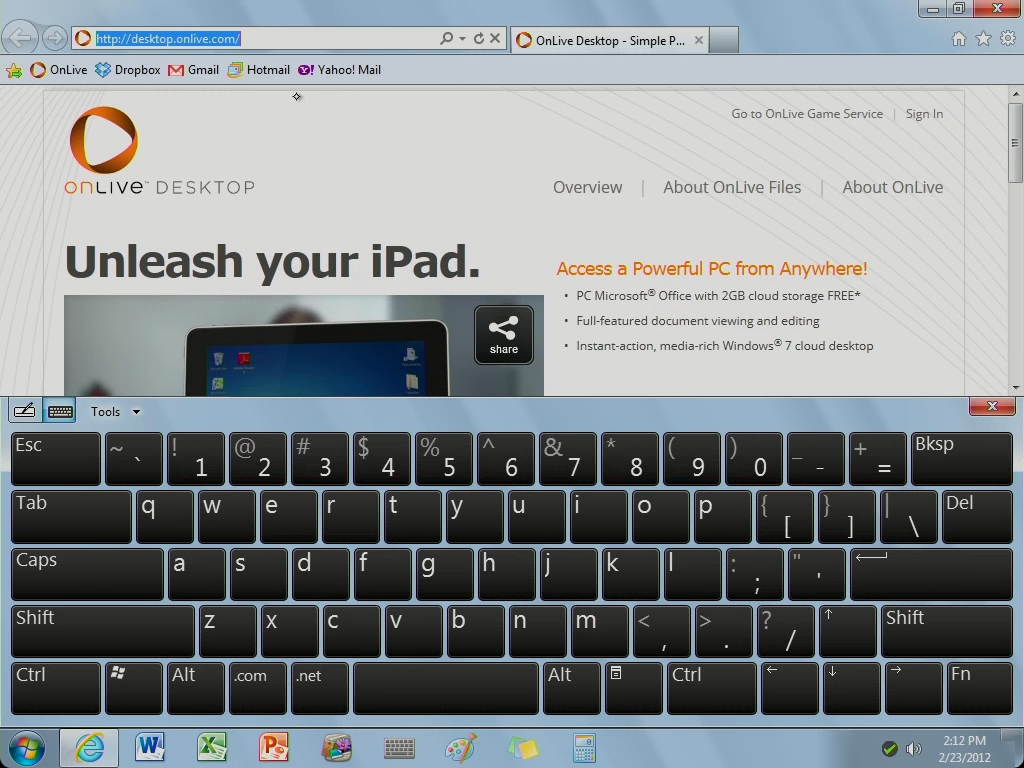
With the addition of IE, you now have what amounts to a fully functioning desktop on the iPad, at least for short trips when you just can't take a laptop. While the choice of IE as opposed to Firefox or Chrome may make some users cringe, the advantage here is you can use IE to access Adobe Flash content that would otherwise be unavailable on the iPad. You can also use Desktop Plus to access services such as Dropbox, Gmail, and Google Docs to access any cloud-based documents you may have while staying inside OnLive's Windows 7 environment.
Both the free and $5 versions of OnLive Desktop come with 2GB of cloud storage. OnLive also plans on bringing a $10 per month plan called OnLive Desktop Pro that will include 50GB of cloud storage and the ability to add a select number of PC applications not included in OnLive Desktop Plus.
I didn't get a chance to try out how IE performed on OnLive Desktop, but many critics are giving the experience positive reviews. "OnLive's version of IE is remarkably speedy, period," Harry McCracken said on Time. USA Today's Edward C. Baig said the browsing experience was "zippy." OnLive is using a 1 gigabit per second connection from its servers to deliver IE to your iPad's virtual desktop.
In my brief hands-on time with OnLive, I found a lot to like. I appreciated having Windows 7's taskbar available for quick and easy app switching, and I felt the desktop was relatively responsive overall. If you plan on using OnLive Desktop, I'd advise using a Bluetooth keyboard, as the Microsoft-designed Windows 7 virtual keyboard is slow and not as easy to use as Apple's native software keyboard. But even with a Bluetooth keyboard, fast typists may find it hard to deal with the delay between your typing and when the text shows up on the screen.
To get started, download OnLive Desktop Plus from the App Store, and then sign-up for an OnLive account and your preferred plan through OnLive's site. You cannot sign up for OnLive through the iPad app.
OnLive also warns that free users may not be able to get online to use the service at all times. Desktop Plus and Pro users will be given priority during high traffic times for OnLive's servers. So if you plan on using OnLive for work, you may want to sign up for the Plus plan or the Pro deal when it becomes available.

CloudOn 4.0 brings virtual Microsoft Office to Android smartphones

CloudOn 4.0 brings virtual Microsoft Office to Android smartphones


CloudOn does the seemingly impossible. It hosts Microsoft Office in the cloud, then makes it available on your iPhone, iPad, or Android tablet. PC World's Yardena Arar called it her "favorite cloud-hosted virtual Office service."
With version 4.0, CloudOn is now available for Android smartphones as well. And it brings some much-needed new features to the table, while retaining (for the moment, anyway) the best possible price: It's free.
If you've used the app in the past (on another device), you'll be glad to know that version 4.0 supports both portrait and landscape views, the latter a very welcome (and overdue) addition.
Also new: CloudOn FileSpace, a place to add notes and view all activity on a single file, including edits, for real-time updates on documents. As always, you can share and view Office documents directly from email, Box, Dropbox, Google Drive, and SkyDrive.
CloudOn 4.0 can run on Android phones including the Samsung Galaxy S3, Galaxy Nexus and Nexus 4G, Galaxy Note and Note II, and Galaxy S II Skyrocket. According to a CloudOn rep, these are among the devices the company has "spent the most time on developing and testing." Other phones may work as well (check the Google Play Store), but "it shouldn't be too long before most Android phones are perfectly CloudOn compatible."
I tested the app and service on a Galaxy S3 and found that it worked as advertised. With just a few taps I was able to access my Dropbox account, open an Excel spreadsheet, and edit it.
That said, let's not fool ourselves into thinking Microsoft Office works well within the tiny confines of a smartphone—even one as large as, say, the Galaxy Note II. Although you can create documents via CloudOn, it's just not practical to do so on a phone.
Instead, keep this on hand for those times when you need to review or make a few small changes to a document. For instances like those, CloudOn is hard to beat—especially given that it lets you work within such a familiar interface.

Don't trust Apple, Verizon with your data, says EFF's privacy report

Don't trust Apple, Verizon with your data, says EFF's privacy report

Summary: In its latest report, the U.S. privacy and civil liberties group warn that some companies should not be trusted with your data — but some should, and actively fight on the user's behalf.
Screen Shot 2013-05-01 at 11.50.24
(Image: EFF)
And the list goes on.
In fact, out of the 18 major Web and technology companies listed, only six firms had five out of six stars rating how far they will go to either protect users from the government or even fight on their behalf in court.
The report published by the Electronic Frontier Foundation (EFF) ranks the selected firms based on their privacy policies and law enforcement guidelines, but also how far they will go to protect users' data when a subpoena is issued and so on. The EFF also notes if the company in questions whether a warrant needs to be issued before it hands over data.
While Twitter and Sonic.net were the only two firms to have been given full marks by the privacy group, Verizon and MySpace were given none. Second to that, Yahoo, which was given just one star for fighting for its users in court, and AT&T and Apple, which fight for users in Congress, were also given one star.
According to the group, this isn't news. "MySpace and Verizon earned no stars in our report," it said. "We remain disappointed by the overall poor showing of [Internet providers] like AT&T and Verizon in our best practice categories."
Perhaps causing some conflicts, "Apple and AT&T are members of the Digital Due Process coalition" — a group which attempts to clarify U.S. online snooping laws, such as the Electronic Communications Privacy Act (ECPA) — "but don’t observe any of the other best practices we're measuring."
Despite a data breach in 2011, Dropbox ranked as one of the most trusted firms by the EFF, as did LinkedIn, which suffered a separate albeit similar hack last year.
Microsoft also scored relatively highly thanks to its recent release of its first transparency report, following in Google's footsteps, following pressure from privacy groups regarding allegations of Chinese surveillance on Skype users.
But AT&T and Verizon, the two largest cellular firms in the U.S., with a combined customer base of around 220 million — around two-thirds of the U.S. population — rated extraordinarily badly. 
"While there remains room for improvement in areas such as the policies of location service providers and cellphone providers like AT&T and Verizon, certain practices — like publishing law enforcement guidelines and regular transparency reports — are becoming standard industry practice for Internet companies," the EFF noted.
But this comes only recently after AT&T was once again embroiled in a controversy that effectively saw its customers' data being actively wiretapped by U.S. law enforcement agencies.
CNET's Declan McCullagh noted that senior Obama administration officials allegedly secretly authorized intercepting communicationscarried on AT&T networks and other Internet providers, despite it may be an illegal practice under federal wiretapping laws.
Though your cell company may not stand up for your rights, but Twitter does, being the operative silver lining to the report. 
Twitter was singled out for defending its users in court. The microblogging service received respect for "standing up for its users" in the New York v. Harris case, which centered on the Occupy Wall Street protests. It was also the first company to publish in full its guidelines for law enforcement access and requests.
Google was also given a pat on the back for challenging the secretive National Security Letters.
These so-called "gagging orders" are being released in range numbers, as to not disclose the exact number that may jeopardize active investigations, but opens up a level of transparency not seen before.
"We are also seeing a shift that we hope will be adopted across Internet companies more broadly: two Internet companies — Google and Microsoft — have published figures regarding National Security Letters, secretive government demands for user information that are typically accompanied by gag orders."
All in all, as a result of this, many companies have improved significantly ahead of the curve, adding pressure on those that haven't.
Google, Comcast and Twitter are the three major firms that earned two new stars this year, while Microsoft earned three. The report also highlighted that Foursquare went from zero stars in 2012 to four stars in 2013.
"We are extremely pleased to recognize the outstanding commitment each of these companies has made to public transparency around government access to user data," the report said.